Organization settings
Profile, notifications, activity, permissions, and the danger zone.
Organization settings hold the shared account configuration. This page walks through every screen in Organization settings and the User-settings pages that affect organization access.
If a setting changes how the organization appears to others, how members get notified, or what the audit log records, it lives here.
Settings overview
The Overview page is the first item under User settings. It is read-only.
| Section | What it shows |
|---|---|
| Recent activity | The last events recorded in the audit log. Click an entry to open the detail sheet. |
| AI usage | A heatmap or bar chart of AI requests for the active period. Switch period with the picker. |
| Quick links | Direct entry to organization settings, members, and integrations. |
Use Overview as the first check when an operator asks "what changed?" or "where did the quota go?" before opening Activity or Usage Details.
Account settings
Account settings are personal. They belong to the signed-in operator only. They never change settings for other members.
Open User settings → Account.
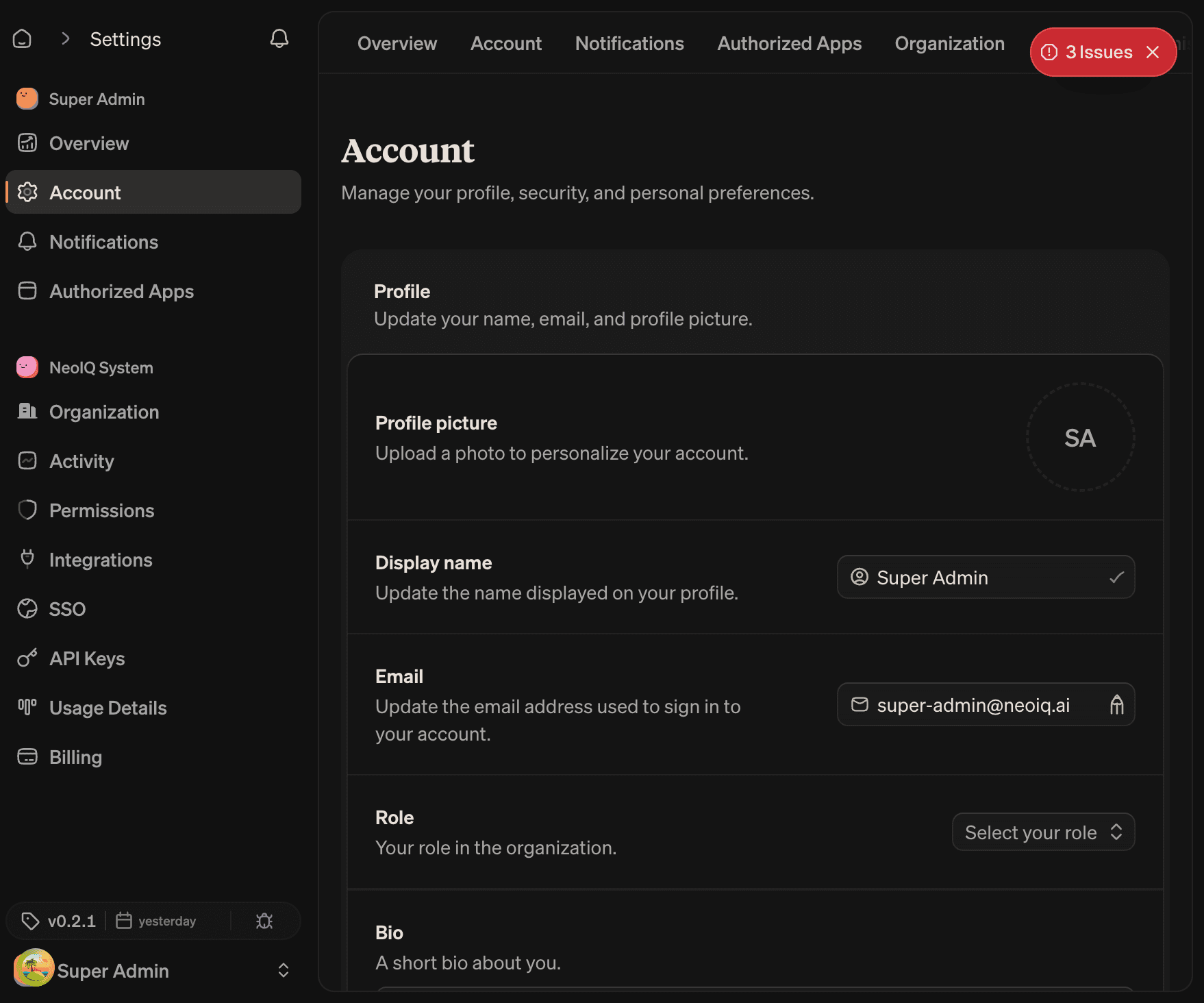
Profile
| Field | Constraint |
|---|---|
| Profile photo | Direct storage upload. Confirmed through tRPC. |
| Display name | The name shown in the members table and audit log. |
| Used for sign-in. Verified via the auth flow. |
Security on the account
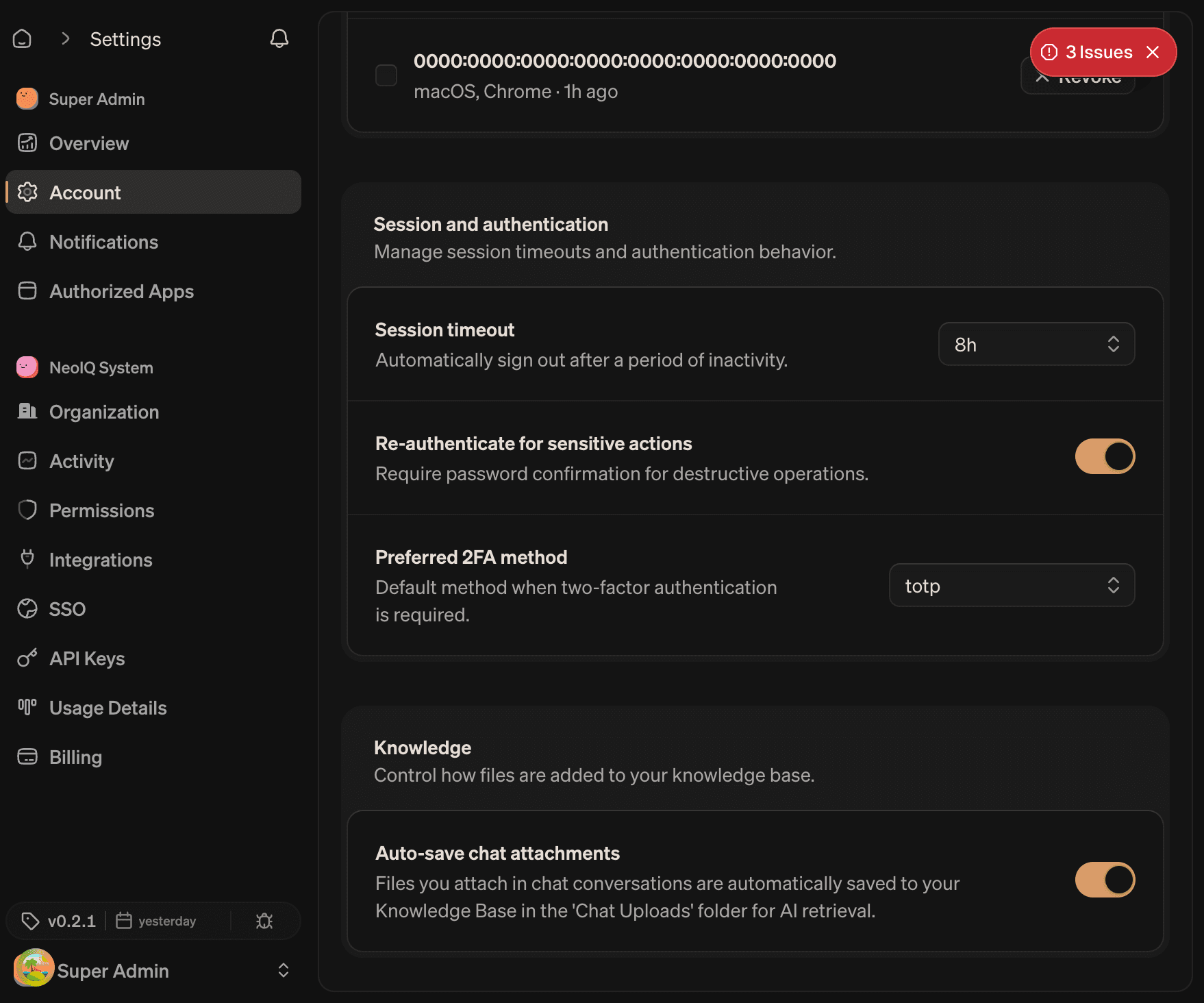
| Section | What it controls |
|---|---|
| Password | Change password. Requires the current password. |
| Two-factor authentication | Enable, disable, or manage TOTP and backup codes. |
| Connected sign-in providers | Link or unlink Google, GitHub, and other supported providers. |
| Authorized apps | Third-party OAuth apps with access to the account. |
| Sessions | Active sessions across devices, with the option to revoke. |
The last connected sign-in method cannot be removed. Add a password or another provider before unlinking the only sign-in method.
Preferences
| Setting | Effect |
|---|---|
| Theme | Light, dark, or follow system. Personal to this account. |
| Language | Interface language. Bilingual support: English and Arabic (v2). |
| Knowledge | Personal knowledge graph behavior. Read-only for organization members. |
Preferences are stored on the account. Changing them does not change preferences for other members.
Organization profile
Open Organization settings → Organization to edit the organization profile.
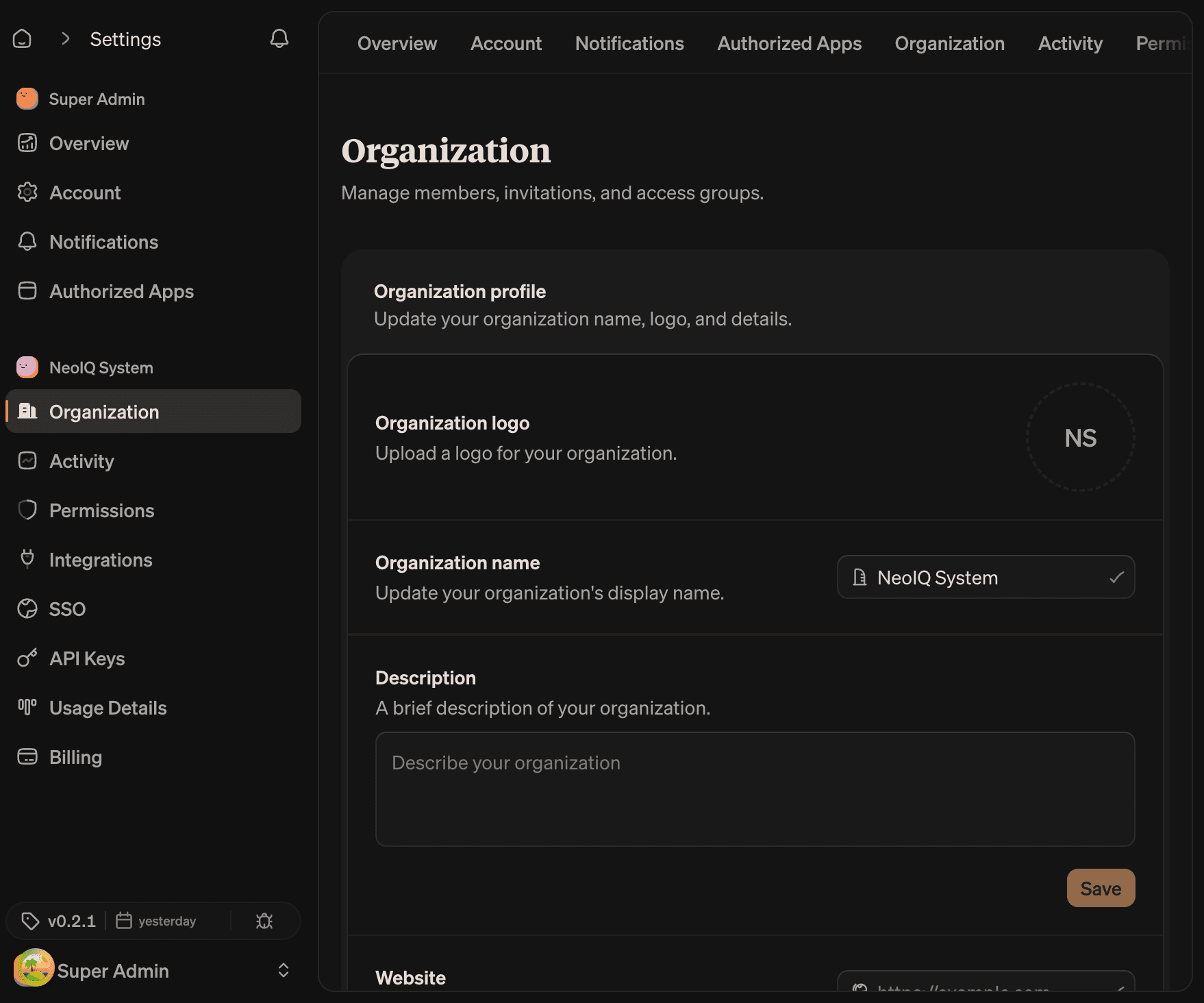
| Field | Constraint |
|---|---|
| Logo | Image upload, round shape. Optional. Falls back to organization initials. |
| Name | 2 to 100 characters. Required. |
| Description | Up to 500 characters. Optional. Shown in dialogs and selectors. |
| Website | URL up to 500 characters. Validated as a URL. |
| Business type | A combobox of preset categories, or "Other" with a free-text description. |
Each field auto-saves on its own form. The check icon beside the field confirms the save. The icon is disabled when the value is unchanged.
Choosing a name
Keep the organization name audit-safe. The name appears in:
- The organization switcher in the navigation.
- Members invitation emails.
- Brand Guard verdicts.
- The audit log.
- Billing receipts and invoices.
Use the brand, market, or operating company name. "Chalhoub Beauty KSA" is easier to audit than "Marketing".
Logo
The logo appears in the organization switcher, settings sidebar, and member invitation emails. Square images render best.
The avatar dialog supports:
- Crop and reposition before saving.
- Delete the existing logo and fall back to initials.
- A spinner while the upload is in progress.
Description and website
The description appears in member-facing organization selectors. Keep it short and operator-readable.
The website is informational only. It is not a redirect or trust anchor for SSO domain verification — that lives in Security.
Business type
Business type is a profile field for internal classification. The combobox covers common categories. Choose Other... to enter a free-text label up to 500 characters when no preset fits.
Notifications
Open User settings → Notifications.
Notifications are personal. The page shows a matrix of notification categories × delivery channels. The signed-in operator controls only their own delivery.
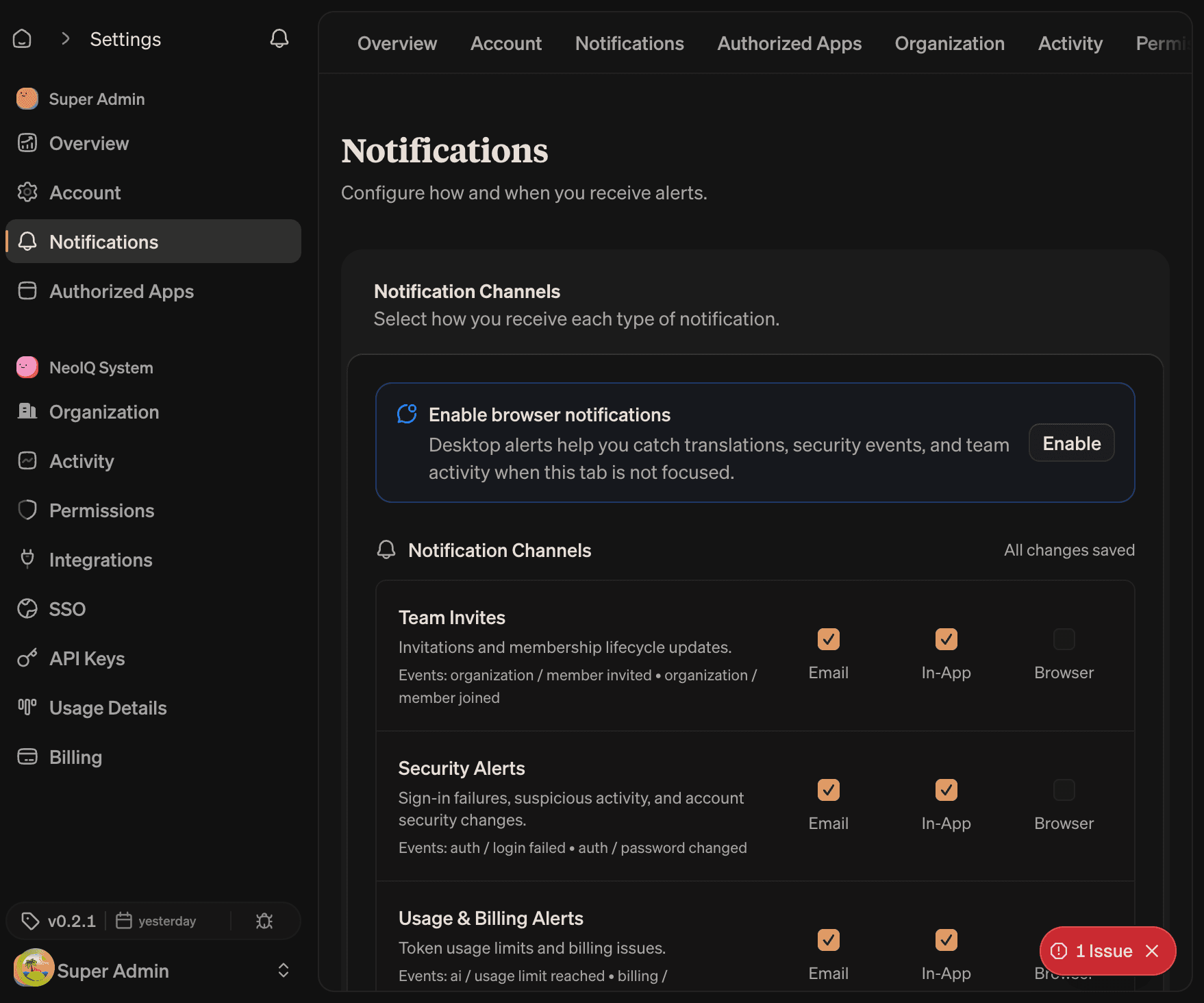
Channels
| Channel | Where it delivers |
|---|---|
| The email address attached to the account. | |
| In-app | The bell menu in the navigation header. |
| Browser | Native browser notifications. Requires browser permission. Toggling on opens the consent flow. |
Browser permission is local to the device. Granting permission on a laptop does not grant permission on a phone.
Notification categories
| Category | Covers |
|---|---|
| Team Invites | Invitations and membership lifecycle updates (member invited, joined, removed). |
| Security Alerts | Sign-in failures, suspicious activity, and account security changes. |
| Usage and Billing Alerts | Token usage limits, quota thresholds, and billing issues. |
| System Announcements | Product announcements and notification delivery status. |
Each category has a row in the matrix. Toggle the channel boxes per row. Defaults are email + in-app on, browser off until permission is granted.
Sounds
A separate switch enables a short audio cue when an in-app notification arrives. Sounds are local to the device.
Permissions dialog
The Notifications page surfaces a permission dialog when:
- Browser is toggled on for any category.
- The browser has not yet granted permission.
The dialog explains the consequence and routes the operator through the browser's native permission prompt. If permission is denied, the dialog explains how to re-enable it from browser settings.
Activity
Open Organization settings → Activity to see the audit log.
The page has two views, switchable from the toolbar.
Stream view
A chronological feed of organization events. Each event shows:
- Actor name and avatar.
- Verb (created, updated, deleted, approved).
- Resource and resource id.
- Timestamp, in absolute and relative form.
Clicking an event opens a detail sheet with the full event payload.
Table view
A dense table of the same events with columns for actor, action, resource, and timestamp. Use this view when filtering or scanning a long range.
Filters cover:
- Actor (one or more members).
- Resource type (member, role, brand, project, integration, api_key, organization, billing).
- Date range (last 24 hours, last 7 days, last 30 days, custom).
What activity records
Activity captures organization-affecting events. The categories include:
| Category | Examples |
|---|---|
| Members | Invitation sent, accepted, cancelled, role changed, member removed. |
| Roles | Role created, role updated, role deleted, permissions changed. |
| Settings | Organization name, logo, description, website, business type updates. |
| Billing | Plan changed, seats updated, payment method changed, overage toggled. |
| Security | SSO provider added, domain verified, SCIM enabled, MFA changes. |
| Integrations | Integration added, configured, disabled, removed. |
| API keys | Key created, scope changed, revoked. |
If the activity page is empty or unavailable, the signed-in operator does not have permission to view audit logs. The required role for viewing is owner or admin by default; it can be customized on the Permissions page.
Permissions
Open Organization settings → Permissions to view and edit the per-role permission matrix.
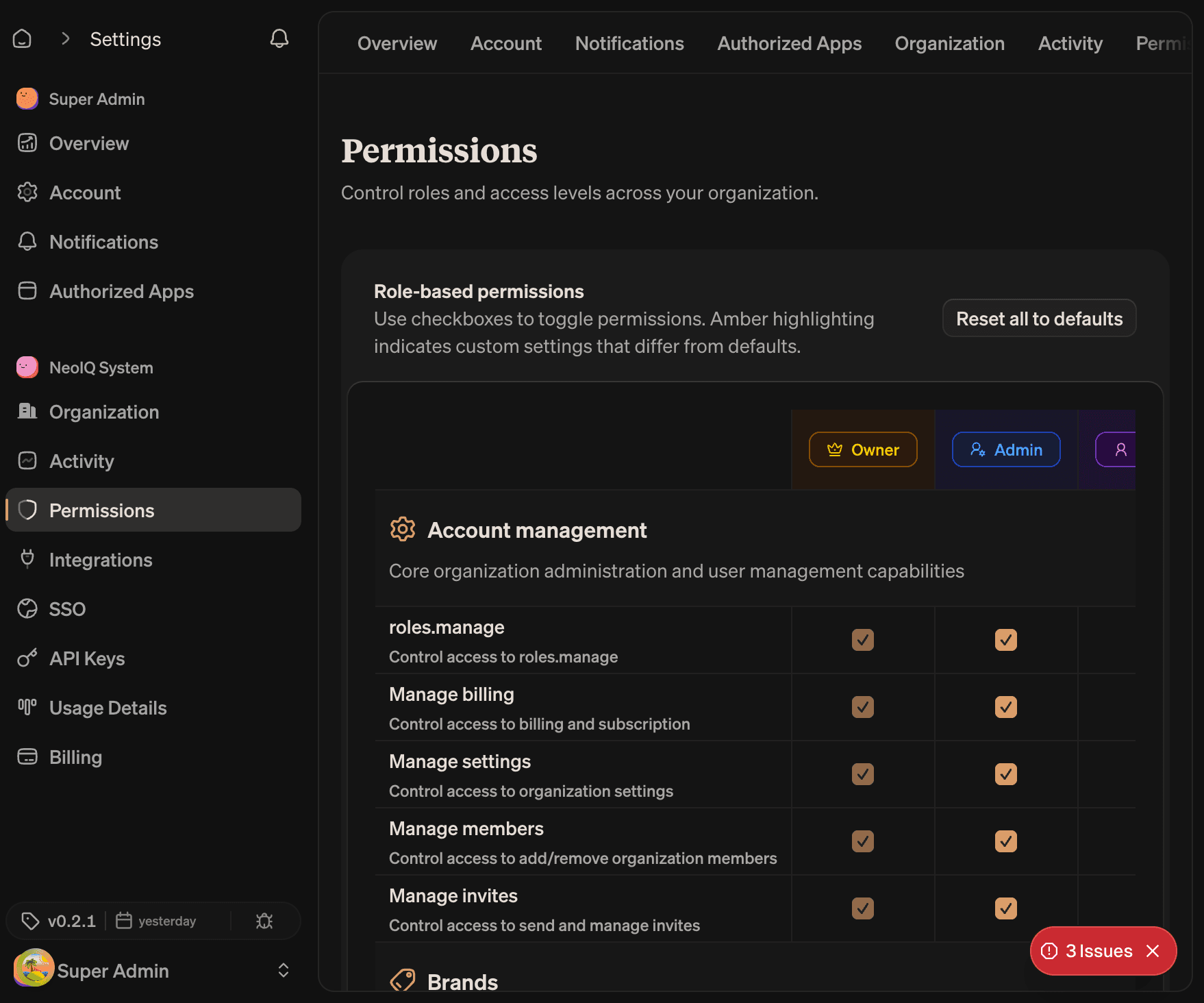
The matrix has resources on one axis and actions on the other. A green check means the role can perform the action; an empty cell means it cannot.
What the matrix covers
Resources include:
- Account management. Members, roles, access groups, settings, billing, SSO, SCIM.
- Brands and styles. Brands, brand voices, brand styles, brand guardrails, brand channels, brand blocks, brand layouts.
- Work surfaces. Projects, campaigns, content, catalogs, templates, assets.
- AI and agents. AI tasks, scheduled tasks, contexts, personas.
- Reviews. Review queues, review verdicts, comments.
- Reporting. Analytics and audit logs.
- Programmatic access. API keys, MCP servers.
Actions include create, read, update, delete, and resource-specific actions like approve, share, and run.
Defaults vs overrides
Every cell starts at a default determined by the role. Customized cells appear with a colored background to make overrides easy to spot.
Two organization-wide actions support clean management:
- Reset to defaults. Returns the role to its default matrix. Clears every override.
- Copy from role. Seeds a custom role with the matrix of an existing role.
Permission changes apply immediately. A member with the changed role gets the new permission on their next request.
Custom roles
Custom roles appear alongside built-in roles on this page. Editing a custom role updates only that role; built-in roles are isolated from custom roles.
A custom role's hierarchy controls who can assign it. A role above "member" can only be assigned by an admin or higher.
Danger zone
The danger zone holds destructive actions. It sits at the bottom of Organization settings → Organization, behind a clearly separated card.
Delete organization
Deleting an organization removes:
- All organization-scoped data (brands, projects, briefs, assets).
- Active subscriptions linked to the organization.
- All member access.
- API keys, MCP servers, and integrations.
- Pending invitations.
Audit log retention follows the data retention policy of the active plan. Brand Guard records associated with the deleted organization are removed alongside the organization.
The deletion flow has two steps to keep it irreversible without confirmation:
- Verification email. A six-digit code is sent to the owner's email address. The dialog asks the owner to type the organization name to send the code.
- Confirmation. The owner enters the six-digit code in the dialog. Submitting the code starts the deletion job.
The delete button is disabled if:
- The signed-in operator is not the primary owner.
- The organization has an active billing subscription that requires explicit cancellation first.
Use deletion only when the organization is closing. Do not use it to fix a name, logo, URL, or member issue. Edit those settings directly.
Read next
- Members and roles. Detailed coverage of invitations, roles, access groups, and ownership.
- Billing and usage. Plan, seats, AI usage, overage, exports.
- Security and integrations. 2FA, SSO, API keys, MCP, integrations.