
Members and roles
Invite members, assign roles, manage access groups, and transfer ownership.
Members are the people who can sign in to an organization. Roles decide what each member can do.
The model is small on purpose: invite a member, assign a role, group members when permissions repeat, review the access list when work changes.
The members table
Open Organization settings → Organization to see the members table. Each row is one member.
| Column | What it shows |
|---|---|
| Name | Display name and avatar from the member's account. |
| The email used to sign in. Linked to a single auth identity. | |
| Role | The current organization role. Click to change when permitted. |
| Joined | The date the member accepted the invitation. |
| Last active | The most recent sign-in time. |
| Actions | Update role, remove member, transfer ownership. |
Owners and admins can act on every row except their own destructive actions. The current operator cannot remove themselves until ownership is transferred.
Invitations
Open the Invite Members dialog from the members card or the pending invitations card.
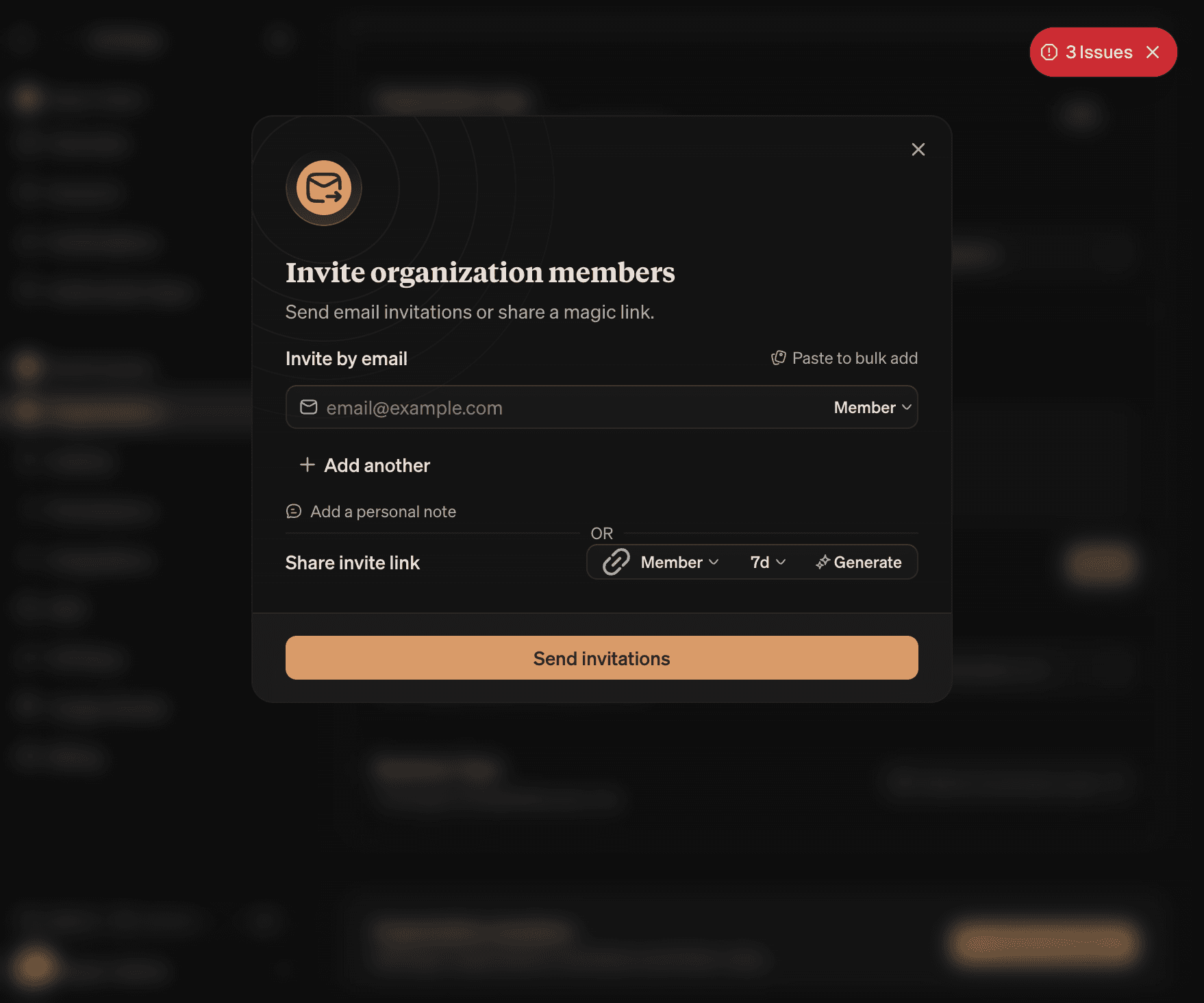
The dialog has two paths. Both can be used in one organization.
By email
| Item | Details |
|---|---|
| Recipients | Up to 10 email addresses per send. One row per recipient. |
| Role per invite | Each recipient gets their own role from the role dropdown. |
| Paste-to-add | Pasting a list of emails (comma, newline, or Name <email>) splits into rows. |
| Personal note | Optional, up to 500 characters. Shown to the recipient in the invitation email. |
The invitation enforces role hierarchy. An admin cannot invite an owner. A member cannot invite anyone unless the role is below their own. The dropdown only lists roles the current operator can target.
When an invite is sent, the recipient gets an email with a sign-in link. Until they accept, the invite shows in the Pending Invitations card.
By magic link
| Item | Details |
|---|---|
| Role | The role assigned to anyone who joins through the link. |
| Expiry | One of 1 day, 7 days, 30 days, or 90 days. |
| Reuse | The link can be reused until it expires or is regenerated. |
A magic link grants the chosen role to whoever has the link. Use it for short-lived shares (a launch sprint, a partner workshop, a procurement contact). Regenerate the link if the role or expiry changes.
Pending invitations
Pending invitations live in their own card under the members table. Each row supports:
- Resend. Sends the original email again.
- Cancel. Revokes the invitation. The recipient can no longer accept.
A pending invitation does not consume a seat until the member joins.
Built-in roles
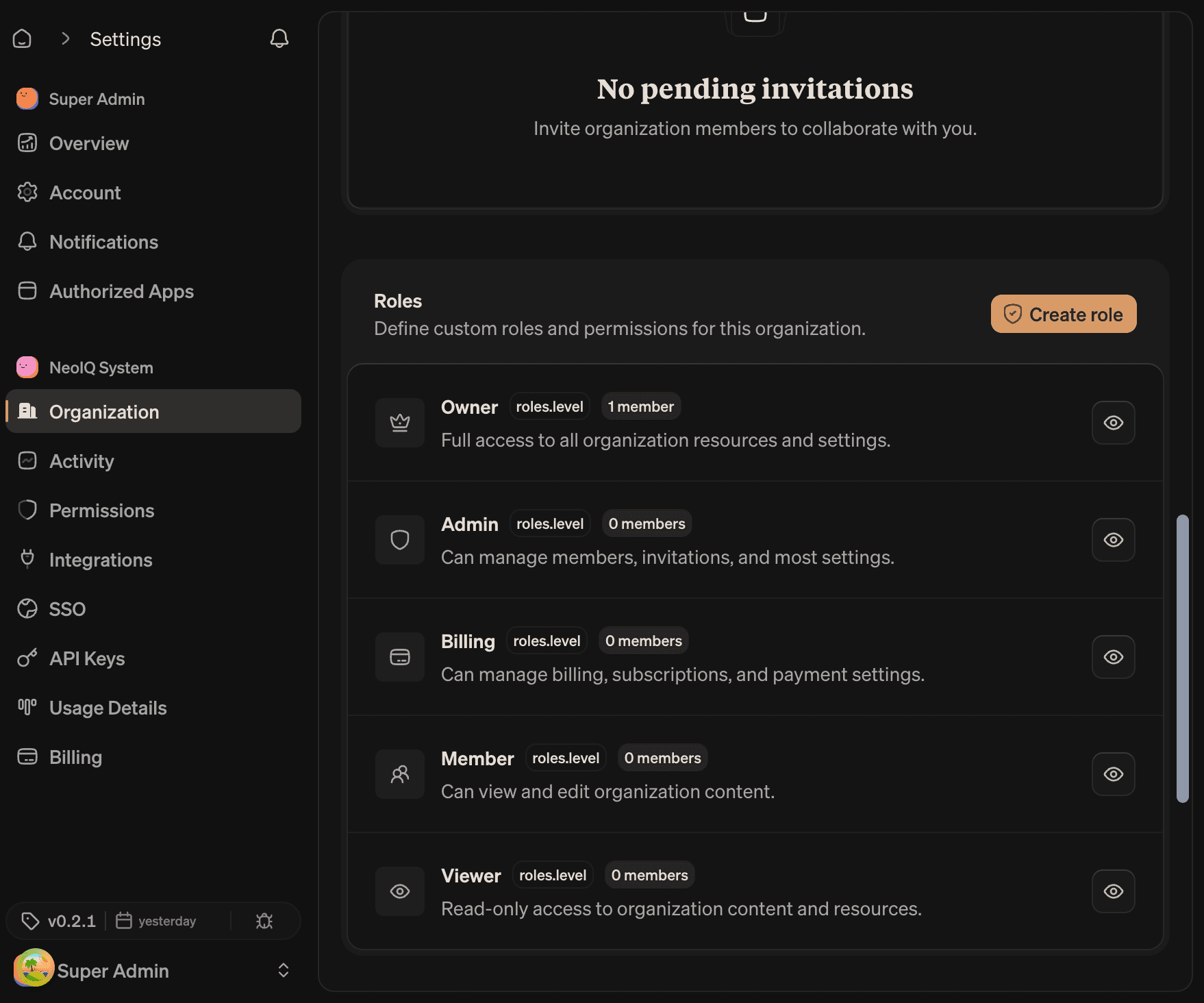
Every organization ships with the same default roles. Custom roles can be added on top.
| Role | Use it for |
|---|---|
| Owner | Final control. Manages roles, billing, members, integrations, and destructive actions. |
| Admin | Day-to-day management. Members, invitations, settings, integrations, API keys. |
| Billing | Subscription, seats, payment method, invoices. No content control. |
| Member | Standard access. Drafts, briefs, reviews, comments, approvals. |
| Viewer | Read-only. Cannot edit content, run agents, or change settings. |
| Guest | Narrow read-only access for limited collaboration. Often used with access groups. |
There is exactly one Primary Owner per organization. The primary owner can transfer ownership but cannot leave the organization without transferring first.
What each role can do, by default
| Capability | Owner | Admin | Billing | Member | Viewer |
|---|---|---|---|---|---|
| Edit organization profile | ✓ | ✓ | |||
| Invite and remove members | ✓ | ✓ | |||
| Manage roles and permissions | ✓ | ||||
| Manage billing and seats | ✓ | ✓ | |||
| Configure SSO and SCIM | ✓ | ||||
| Create and revoke API keys | ✓ | ✓ | |||
| Add and remove integrations | ✓ | ✓ | |||
| View audit log | ✓ | ✓ | |||
| Create and edit content | ✓ | ✓ | ✓ | ||
| Approve in Brand Guard | ✓ | ✓ | ✓ | ||
| Read content | ✓ | ✓ | ✓ | ✓ | ✓ |
| Delete the organization | ✓ |
The matrix above is the starting point. Permissions can be customized per role and per organization on the Permissions page. Customized cells are highlighted in the matrix.
Custom roles
Open Organization settings → Organization → Roles to manage custom roles.
Custom roles let an organization define its own permission shape. Use them when the built-in roles are close but not exact (an "Editor" with no delete rights, a "Reviewer" with approval but no draft rights).
| Field | What it captures |
|---|---|
| Name | The role label. Shown in dropdowns and tables. |
| Description | A short note for operators who manage many roles. |
| Permissions | A matrix of resources × actions. Defaults are seeded from a built-in role. |
| Hierarchy | Where the role sits relative to others. Controls who can target it in invitations. |
Roles enforce hierarchy. A custom role above "member" cannot be assigned by a member. A custom role below "admin" can be assigned by any admin.
Deleting a custom role moves every member with that role back to the next role below in the hierarchy. The roles table shows usage count before deletion.
Access groups
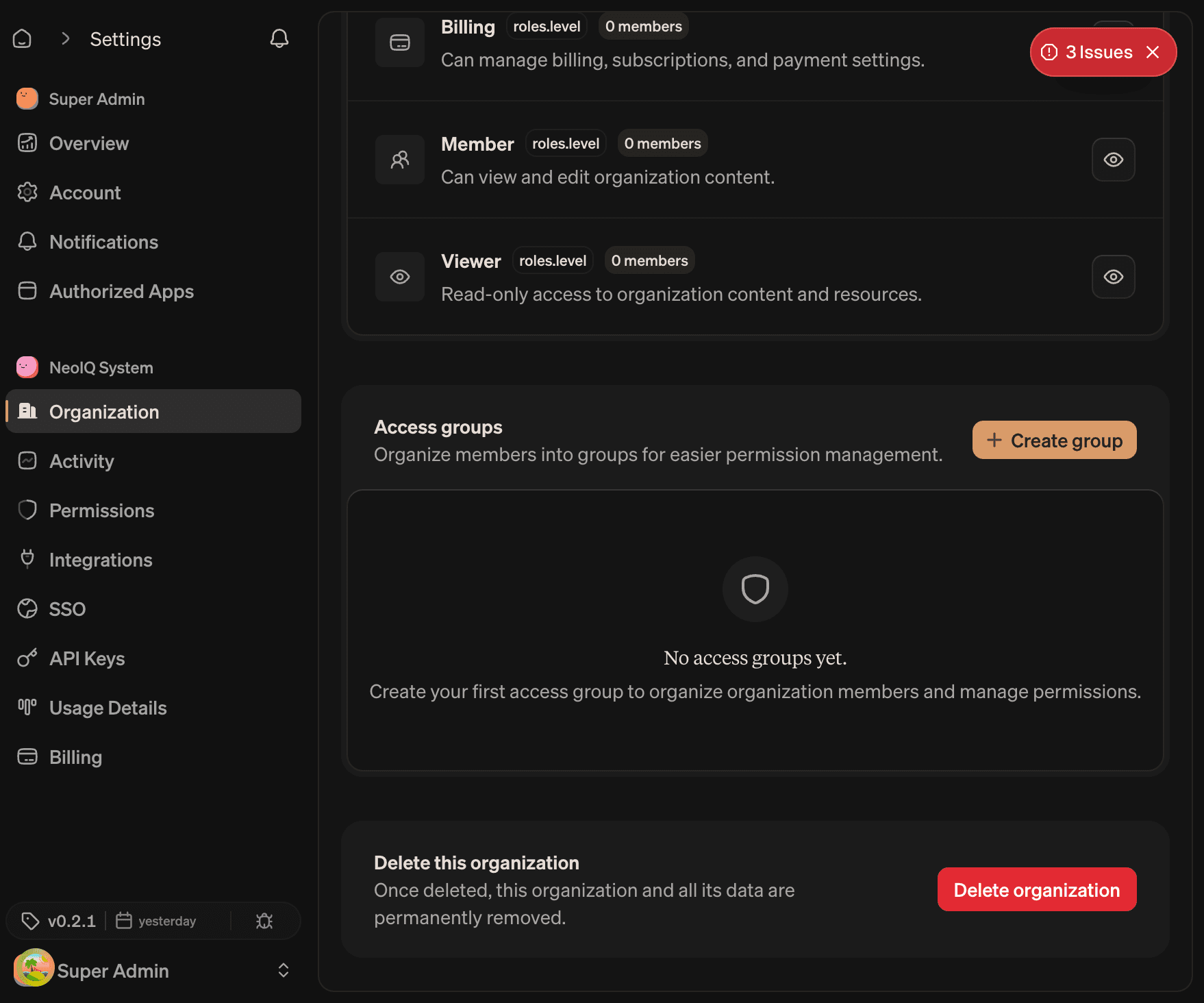
Access groups make repeated permission changes easier. A group is a named bundle of members plus a permission matrix attached to the group.
Open Organization settings → Organization → Access Groups to manage them.
When to use a group
| Scenario | Why a group helps |
|---|---|
| A brand squad needs the same Brand Guard and Content Engine access. | Apply once, members inherit. |
| A legal review group needs read access plus approvals. | Approval surface stays narrow and auditable. |
| An agency partner needs limited access for one campaign. | Time-boxed group, removed when the campaign ends. |
| Markets share work but billing stays central. | Group per market with read-only billing access. |
Do not create an access group for one person. Assign that member directly.
What a group contains
| Field | What it captures |
|---|---|
| Name | Up to 50 characters. Shown in member rows and the group list. |
| Description | Up to 200 characters. Optional context for other admins. |
| Members | The members included in the group. A member can belong to many groups. |
| Permissions | The permission matrix the group grants on top of the member's role. |
Access group permissions cover content resources only. The following are managed at the role or organization level and are excluded from groups:
- Roles
- Settings
- Access groups
- Analytics
- Audit log
- SSO and SCIM
- API keys
- OAuth clients
- MCP
A group can grant read on brand, campaign, project, template, and similar work resources. It cannot grant access to organization-level controls.
Transfer ownership
Ownership transfer moves primary control to another member. Open the member's row → Transfer ownership to start.
Before transferring:
- Confirm the new owner can pass identity and billing checks.
- Confirm the new owner is set up as a billing operator if billing should follow.
- Decide whether the previous owner should keep an admin role or leave the organization.
After transferring, review:
- Owner list. There must always be at least one primary owner.
- Billing contact. The plan and payment method follow the organization, not the previous owner.
- SSO and authorized apps. Verify access still works for the new owner.
- Pending invitations. Cancel and reissue any that named the previous owner.
- API keys. Rotate keys owned by the previous owner.
Remove a member
Removing a member ends organization access immediately. Audit records keep the original member name attached to past actions.
Removal checklist
Before removing a member, check whether they own active work:
- Open approvals waiting on them in Brand Guard.
- Drafts assigned to them in Strategy Studio, Content Engine, or Creative Lab.
- API keys created under their name.
- MCP connections configured by them with personal scope.
- Scheduled tasks or automations they configured.
- Integrations connected with their credentials.
Reassign or revoke the items above before removing the member. The system will surface blocking items where possible, but ownership of work is an organizational decision.
What survives removal
| Item | After removal |
|---|---|
| Audit log entries | Kept. Member name still appears on past events. |
| Brand Guard approvals | Kept. The verdict still names the original approver. |
| Drafts and content | Stay in the organization. Reassign if needed. |
| Personal MCP servers | Removed with the member. |
| Personal API keys | Revoke before removal. They do not auto-rotate. |
Read next
- Settings. Organization profile, notifications, activity, permissions, danger zone.
- Security and integrations. SSO, SCIM, role mapping, authorized apps.
- Billing and usage. Seats, plan limits, BYOK, overage.