
Billing and usage
Plan, seats, subscription state, AI usage, BYOK, overage, and exports.
Billing and usage describe what the organization can run and what has already been consumed. The page lives at Organization settings → Billing.
Only owners and members with billing permissions can change subscription settings. Members can view usage on the Overview page.
What lives on the Billing page
The Billing page shows the active subscription and the usage attached to it. It is broken into the following cards.
| Card | What it shows |
|---|---|
| Subscription | Active plan, status, billing period, seats, plan actions. |
| Usage and Limits | Current usage by feature with a progress bar and threshold colors. |
| Overage Settings | Toggle for overage billing, monthly budget cap, current spend. |
| Usage Details | AI usage broken down by model, provider, and use case. CSV export. |
| Upcoming Charges | Pending charges for the next billing cycle. |
| Invoice History | Past invoices, with download links. |
Subscription
The Subscription card shows the active plan and the controls for changing it.
Subscription states
A subscription always has one of these states. The state determines what actions are available.
| State | Meaning |
|---|---|
active | Paid and current. Full access. The default healthy state. |
trialing | Inside a trial window. Trial end date is shown on the card. |
past_due | Most recent payment failed. Access is preserved while retries continue. |
unpaid | Retry attempts exhausted. Access may be restricted until payment is completed. |
paused | Subscription is paused. Access is restricted. Resume from the billing portal. |
canceled | Subscription is cancelled. Access continues until the end of the current period. |
incomplete | Initial setup did not complete. Finish checkout to activate. |
incomplete_expired | Initial setup failed past the retry window. Start a new checkout to subscribe. |
The status badge on the card uses the same labels. Hovering the badge shows the timestamp of the last status change.
Plan actions
The action button on the Subscription card changes with the state.
| State | Primary action | Notes |
|---|---|---|
active | Switch plan | Opens the plan picker dialog. Prorations are calculated. |
trialing | Switch plan | Same plan picker. Trial converts to the new plan. |
past_due | Update payment | Opens the billing portal to add or change the payment method. |
unpaid | Update payment | Same as above. |
canceled | Restore subscription | Reverts the cancellation if still inside the period. |
incomplete | Complete checkout | Returns to the checkout flow. |
incomplete_expired | Start checkout | Begins a new checkout. |
The cancel option lives in the secondary menu. Cancellation can be set to:
- Cancel at period end. Access continues until the period closes.
- Cancel immediately. Access ends at the next refresh. Used when an organization needs to stop access fast.
Billing period
The Subscription card always shows:
- Period start. The most recent billing date.
- Period end. The next billing or renewal date.
- Trial end. Only on trialing subscriptions.
- Cancellation date. Only on cancelled subscriptions.
Dates are formatted in the operator's locale.
Seats
A seat is a member slot on the active plan. The plan determines how many seats are available.
Counts and behavior
The Subscription card shows:
- Active members. People who have accepted an invitation.
- Pending invitations. Counted toward the limit while pending.
- Seat limit. From the active plan.
When the organization reaches the seat limit:
- New invitations fail with a seat-limit message.
- The invite dialog disables the Send button until seats are freed.
- Existing members keep working without interruption.
Freeing a seat
To free a seat:
- Cancel pending invitations that are no longer needed.
- Remove members who have left the team.
- Reassign their work first. See the removal checklist.
If the team is growing, switch to a plan with more seats from the Subscription card.
Plan features
Different plans expose different features. The Plans page lists them in detail. The two organization-level features that change behavior on this page are:
| Feature | What it does |
|---|---|
| BYOK | Bring Your Own Key. AI requests run on the organization's own provider keys. Usage does not count against plan limits. |
| Overage | Allows the organization to exceed plan limits and pay per-unit charges, capped by a monthly budget. |
A green BYOK Active badge appears on the Usage and Limits card when BYOK is on.
Usage and limits
The Usage and Limits card tracks consumption against the active plan for the current billing period.
Tracked features
Six features are tracked by default:
| Feature | Unit | Reset |
|---|---|---|
| AI tokens | Tokens (formatted as K/M) | Per billing period. |
| AI requests | Count | Per billing period. |
| Image generations | Count | Per billing period. |
| Video generations | Count | Per billing period. |
| Brands | Count | Cumulative. |
| Storage | GB | Live. |
Each feature shows current usage / plan limit and a progress bar.
Threshold colors
Progress bars change color as usage approaches the limit:
- Primary (default). Below 80% of the limit.
- Amber. At or above 80%. A heads-up that the limit is approaching.
- Destructive (red). At or above 100%. The limit is reached.
When a feature crosses 100% and overage is off, that feature stops accepting new requests until the period rolls over or the plan is upgraded.
Bonus credits
If the organization has bonus credits (granted by support or a promo), the available credit appears alongside the plan limit. Bonus credits are consumed first.
Overage
Overage lets the organization continue working past plan limits and pay per-unit usage instead. It is off by default.
Eligibility
Overage settings appear on the Billing page only when the active plan supports overage. The card is hidden otherwise.
Enabling overage
The first time overage is toggled on, a consent dialog appears. The dialog explains:
- That overage will be billed in addition to the plan price.
- That charges are based on actual usage above the plan limit.
- That the operator can set a monthly budget cap.
- That overage can be turned off at any time.
The owner must agree before overage activates. The consent timestamp is recorded on the organization.
Monthly budget cap
The cap is set in USD. While overage is on:
- The card shows the current month's overage spend.
- The cap is enforced by the system. Hitting the cap pauses overage usage until the next billing period.
- Set the cap to
0to disable the cap; usage will continue without an upper limit.
Disabling overage
Toggle the switch off to stop overage. The change applies immediately. Charges already incurred in the current period remain due — they are non-refundable for consumed usage.
Usage Details
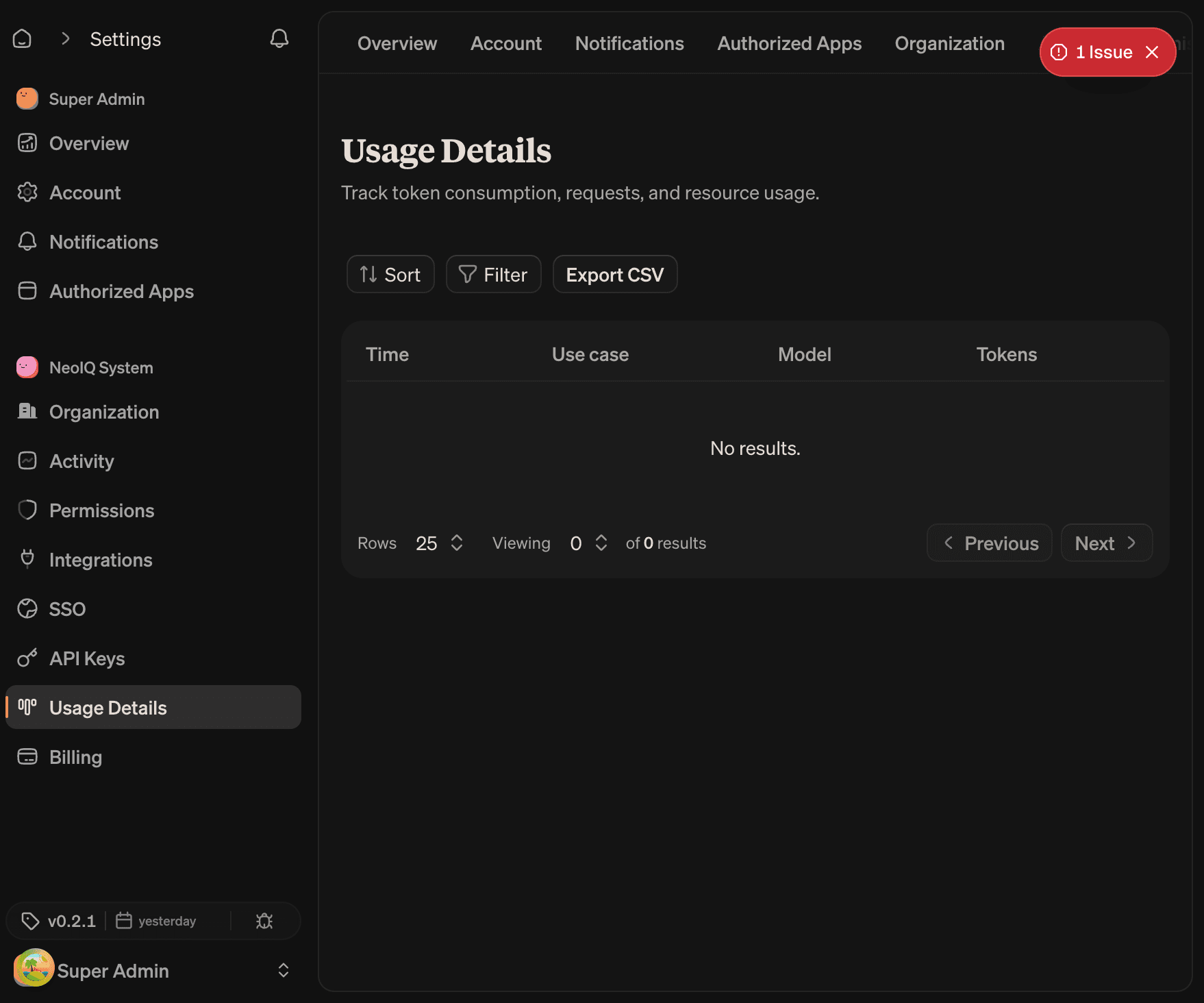
The Usage Details card shows AI usage broken down by model and provider for the active period.
Period selector
| Range | Window |
|---|---|
| Last 7 days | Rolling 7-day window. |
| Last 30 days | Rolling 30-day window. |
| This month | First of the current month to today. |
| Last month | Full previous calendar month. |
| This year | January 1 of the current year to today. |
| Last year | Full previous calendar year. |
What is reported
The table reports per model:
- Provider name.
- Model name.
- Input tokens.
- Output tokens.
- Cached tokens.
- Total tokens.
- Requests.
- Estimated cost in USD.
The footer rolls up totals across every row.
CSV export
The Download CSV action exports the current view. The CSV columns are:
Model, Provider, Input Tokens, Output Tokens, Cached Tokens, Total Tokens, Requests, Estimated Cost (USD)Use the export when finance or operations needs a record outside NeoIQ. Treat exports as operational records, not screenshots.
Upcoming charges
The Upcoming Charges card shows pending charges that will appear on the next invoice. It includes:
- Subscription line item for the next period.
- Estimated overage charges based on usage so far.
- Adjustments and credits.
Hovering each line shows the source of the charge and the date range it covers.
Invoice history
The Invoice History card lists past invoices, newest first. Each row has:
- Invoice number.
- Period covered.
- Status (paid, open, uncollectible, void).
- Amount.
- Download link to the PDF invoice.
Permissions
| Action | Owner | Admin | Billing | Member | Viewer |
|---|---|---|---|---|---|
| View billing page | ✓ | ✓ | ✓ | ||
| Switch plan | ✓ | ✓ | |||
| Cancel and restore | ✓ | ✓ | |||
| Update payment method | ✓ | ✓ | |||
| Toggle overage and set cap | ✓ | ✓ | |||
| Download invoices | ✓ | ✓ | ✓ | ||
| Export usage CSV | ✓ | ✓ | ✓ |
A custom role can override the defaults from the Permissions page.
Billing ownership
Assign at least one billing operator who is not the only organization owner. The billing operator should know:
- The active plan and its limits.
- Expected monthly usage and the overage cap.
- The seat owner.
- The internal purchase order or procurement contact.
- The renewal date, if the organization tracks one outside NeoIQ.
If the billing operator changes, update the role on the Members table and rotate any API keys they owned.
Read next
- Members and roles. Seats are tied to members; roles control who can change billing.
- Settings. Activity records billing events.
- Security and integrations. Authorized apps and API keys for the billing portal.